Teacher Lesson Planner 2025–2026
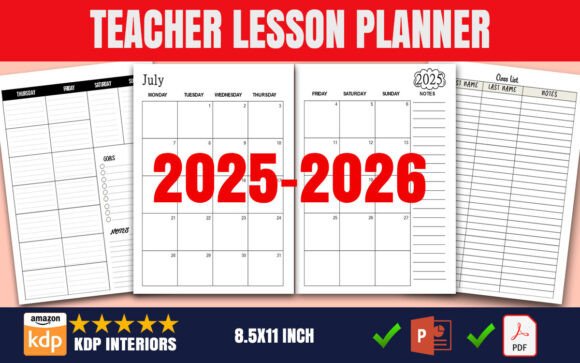
If you're launching or scaling a KDP business focused on teacher resources, the Teacher Lesson Planner 2025–2026 isn’t just another printable—it’s a high-demand, low-friction product with built-in seasonal relevance and real classroom utility. Designed specifically for the upcoming academic year (July 2025 through June 2026), this planner delivers structure without complexity: monthly overviews, weekly lesson blocks, grade and attendance tracking, and flexible note pages—all in an 8.5 x 11-inch format optimized for home printing and professional presentation.
Why This Planner Stands Out for KDP Sellers
Unlike generic planners that try to serve everyone, the Teacher Lesson Planner 2025–2026 – KDP Interiors was built with creators in mind. It includes both a print-ready PDF (no bleed, high-resolution) and a fully editable PowerPoint file—so you can personalize fonts, colors, or school branding before uploading. That dual-format flexibility means you’re not locked into one design path. You can test variations, localize for different curricula, or bundle it with subject-specific add-ons later.
More importantly, it’s pre-validated for usability. Teachers need clarity—not clutter. Each monthly spread fits one month across two facing pages, eliminating awkward page-turning mid-lesson. Weekly activity sections leave room for objectives, standards alignment, materials, and reflection—not just checkboxes. And the inclusion of a dedicated class list (up to 30 students), grade record, and attendance tracker means it functions as both a planning tool and a lightweight administrative aid.
A Common Mistake: Assuming “Ready-to-Use” Means “No Review Needed”
Many new KDP sellers download the Teacher Lesson Planner 2025–2026 interiors, upload the PDF, and hit “publish”—only to discover formatting issues in preview, inconsistent spacing on printed copies, or missing accessibility cues (like alt-text placeholders in the PPT). “Ready-to-use” refers to completeness—not universal compatibility. Your printer, your target audience’s printer, and Amazon’s internal rendering engine may interpret margins, fonts, or line weights differently.
For example, one educator reported that her printed version showed faint gray lines on the weekly grids—perfectly visible on screen but nearly invisible on her laser printer. The fix? Adjusting contrast in the PowerPoint file before re-exporting the PDF. Another seller overlooked the “no bleed” specification and added decorative borders too close to the edge, triggering Amazon’s auto-rejection for margin violations.
What to Check Before Uploading
- Page count consistency: Verify all 12 months are included (July 2025–June 2026), plus the class list, notes, and record pages. Some versions accidentally duplicate March or skip February—especially if sourced from unvetted templates.
- Font embedding: If using the PowerPoint file to customize, embed all fonts before exporting to PDF. Otherwise, Amazon’s system may substitute them, shifting layout and readability.
- Print simulation: Print one full spread on plain paper using your default settings—not “fit to page.” Check alignment, line thickness, and contrast. If text feels cramped or grids look pixelated, zoom into the original file and confirm resolution is at least 300 DPI at actual size.
- File naming and metadata: Name your PDF clearly (e.g., Teacher_Lesson_Planner_2025_2026_Interiors.pdf) and include relevant keywords in your KDP backend—without stuffing. “Lesson plan book,” “classroom organizer,” and “teacher grade book” reflect how educators actually search.
Overlooking the Power of Small Customizations
Some sellers treat the Teacher Lesson Planner 2025–2026 as a static product—upload once, sell forever. But teachers respond strongly to subtle personalization: a space for state or district standard codes, a checkbox for IEP accommodations, or even seasonal icons (back-to-school, winter break, spring testing) that make the planner feel timely and thoughtful.
You don’t need advanced design skills to do this. In the editable PowerPoint file, insert a small icon next to “Weekly Objectives” or add a light watermark on the notes pages (“Staff Development Notes” or “Parent Conference Prep”). These tweaks cost almost no time—but increase perceived value, reduce refund requests, and encourage five-star reviews like, “Finally, a planner that *gets* how my week actually flows.”
Misjudging Audience Needs Around Format and Function
One recurring oversight is assuming all buyers want the same thing. Some elementary teachers prefer lined note pages for handwriting reflections; others want blank grids for sketching lesson flowcharts. Some secondary educators need more space for standards cross-referencing than the default layout provides.
Instead of guessing, scan recent 4+ star reviews of top-performing lesson planners on Amazon. You’ll notice patterns: praise for “clean margins,” complaints about “too much white space,” or requests for “more weekly columns.” Use those insights—not assumptions—to guide minor edits. For instance, adding a third column to the weekly spread (for “Differentiation Strategies”) takes under five minutes in PowerPoint and addresses a real pain point without bloating the file.
Why Resolution and Size Matter More Than You Think
The Teacher Lesson Planner 2025–2026 is sized at 8.5 x 11 inches—the U.S. standard for binders, copiers, and laminators. That’s intentional. Deviating (e.g., offering a 7 x 10 version “to stand out”) often backfires: teachers can’t slip it into existing organizers, and schools won’t bulk-order non-standard sizes.
Similarly, “high-quality resolution interiors” isn’t marketing fluff. Low-res files produce blurry text on printed copies—especially small font labels like “Attendance Record” or “Student ID.” At 300 DPI, crisp lines stay sharp even after multiple photocopies or binder use. Always export your final PDF from PowerPoint using “High Quality Print” settings—not “Standard” or “Minimum Size.”
A Final Practical Note: Test With Real Context
Before publishing, simulate how a teacher would use it. Open the weekly spread. Try writing in the lesson block with a fine-tip pen. Flip to the grade record page—can you quickly locate a student’s name and enter scores without crowding? Scan the class list—does the spacing allow for longer names or hyphenated surnames?
If something feels tight, slow, or ambiguous, revise it—even if it’s just adding 2 points of line height or widening a column by 0.1 inch. Those micro-adjustments compound into trust. And trust is what turns a one-time buyer into a repeat customer who searches for your name next time—not just “teacher lesson planner 2025–2026.”